Industrial Automation Course at ULisboa
Set IP Address to a P57 PLC using Unity Pro
2023
José Gaspar
Introduction
This webpage has the purpose of helping the Industrial
Automation course of the MEEC MSc, at the Technical University of Lisbon, to
set specific IP addresses to each of the PLCs in the laboratory.
Setting the IP address involves two main steps (i) creating a new network entry in the Unity Pro project,
which allows setting a specific IP address, and (ii) setting the network module
to use the information defined in the network entry.
New Network
Given one Unity Project where the processor is already
selected, i.e. one has chosen TSX P57 1634M (or 2634M) 02.00, creating a network
involves just expanding Communication > Networks in the project
browser pane. See in Figure 1. Note the selection of Ethernet in the
list of available networks.
|
|
|
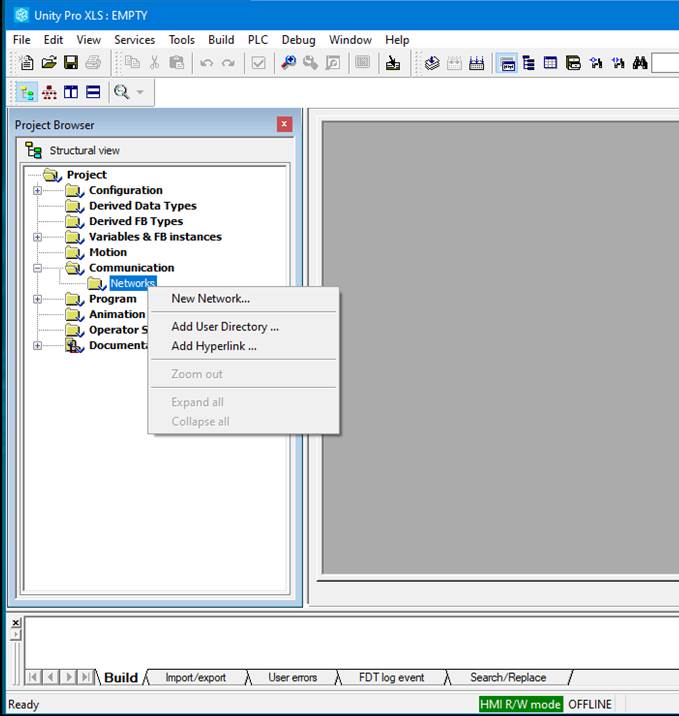
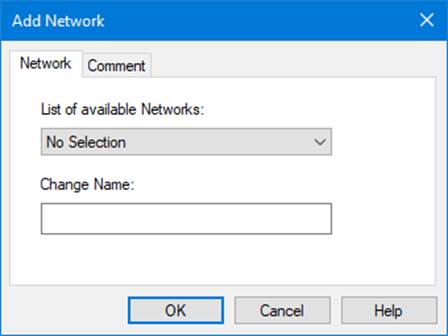
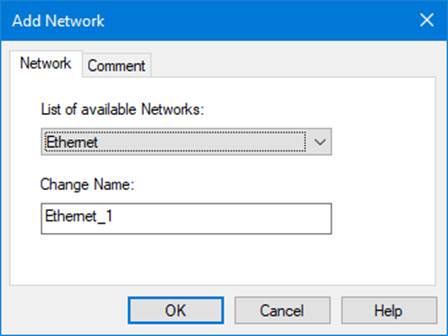
Figure
1: Create a new network entry in a Unity Pro project.
After having created the network, one needs to set the IP
address, the subnetwork mask and the gateway address.
The mask is always going to default to 255.0.0.0, and the gateway will be
always 192.168.27.253 (note the 253, is not a very common configuration, but is
the one correct to be used in the laboratory).
Note that all PLCs must have different IP addresses
to work properly and not conflicting with the other PLCs in the laboratory. To
find an IP just works for your group in the laboratory, without conflicts with
the PLCs of other groups, use the Matlab tool myterminal5. More in detail, opens a
window which has a menu where you can click mymenu
> PLC IP make and set.
This will test a few IP alternative addresses based on your group number. The
result will have the form 192.168.27.2XY where X is a digit between 0
and 4, and Y is also a digit related to your group number.
Figure 2 shows the Unity Pro pane where you will fill the
information you have found with myterminal5.
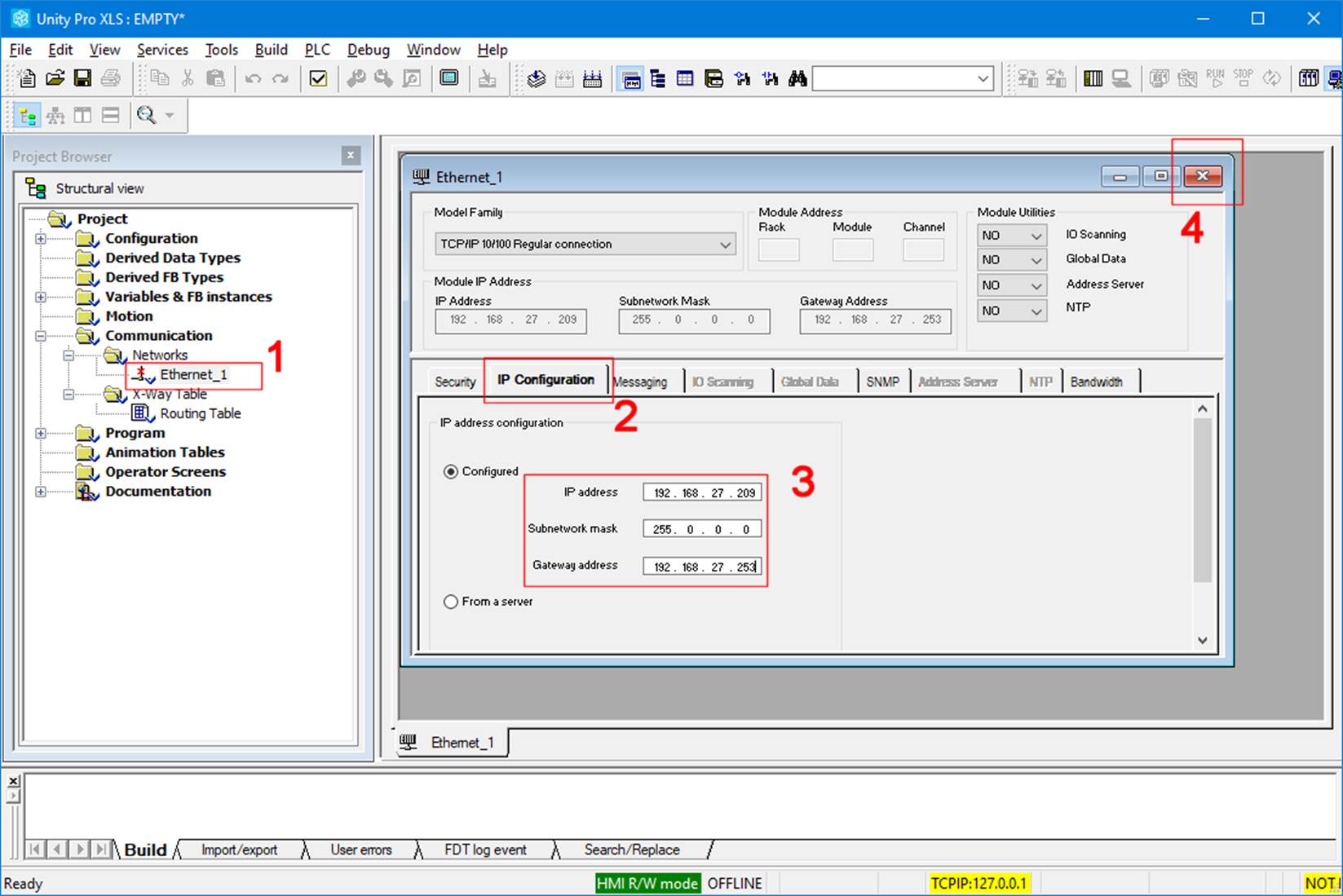
Figure
2: Unity Pro window and pane where you set the IP address, the subnetwork mask
and the gateway address.
Set Network Module
Having created the network, and having set the specific IP
address (and mask and gateway), the last step is to set the network module to
use the network configuration. Figure 3 shows that you just need to open the
hardware configuration part of the project and set TSX
ETY PORT > Channel 0 > ETH TCP IP > Ethernet_1.
Having set the Ethernet module, the IP configuration will be
set in the PLC upon transferring the project to the PLC, using Unity Pro. More
in detail, using the PLC menu of Unity Pro, to connect and then transfer the
project.
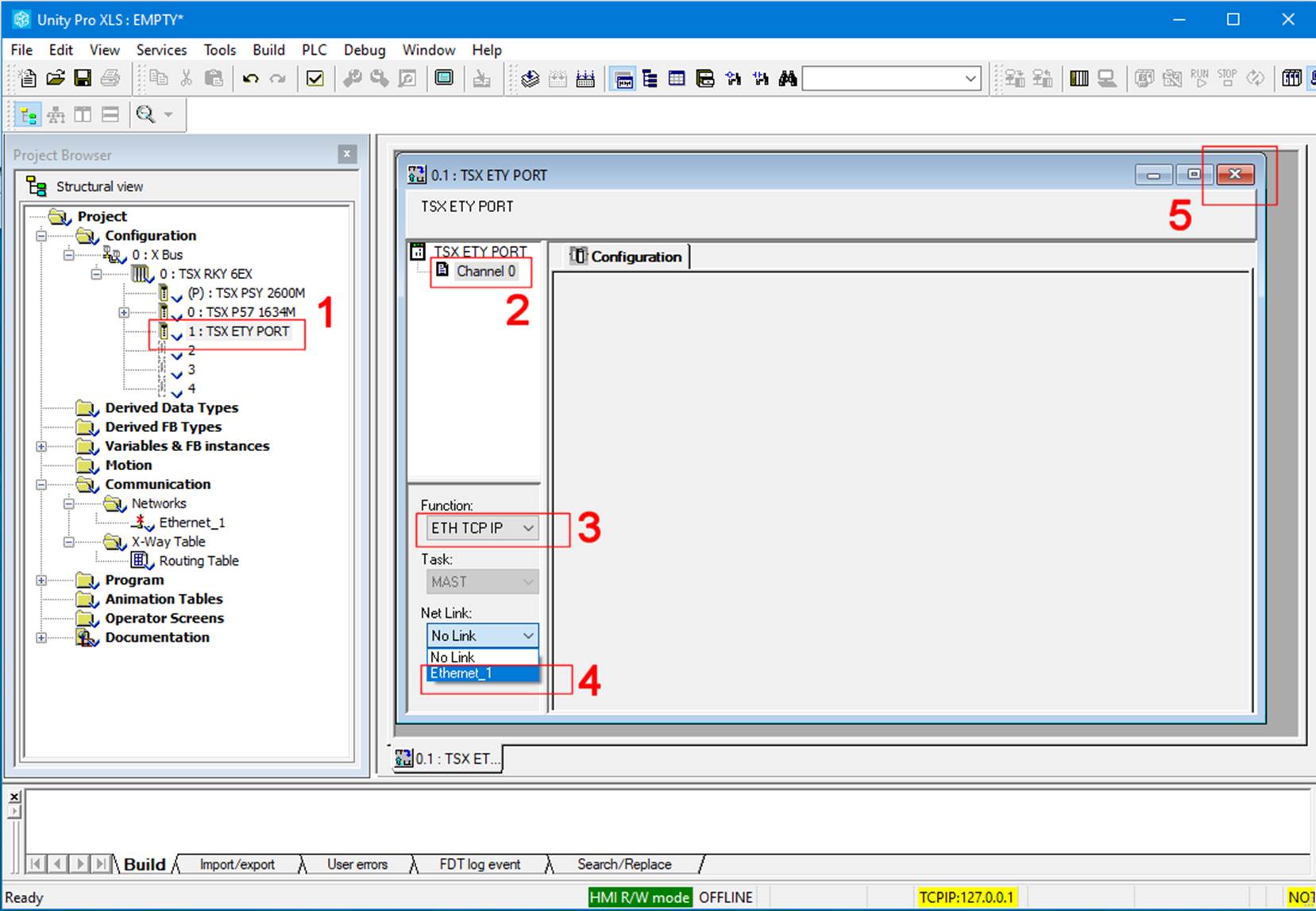
Figure
3: Set the IP information to the Ethernet module. See in the previous figure
the configuration of Ethernet_1.
Maintenance
This software was created
for the purpose of being used in classes. There is no continuous maintenance
other than the requirements associated to the classes.
This program is distributed
in the hope that it will be useful, but without any warranty; without even the
implied warranty of merchantability or fitness for a particular purpose.
Acknowledgment
In case you find this
software useful and do any publication in the sequel please refer to the course
Industrial
Automation at Instituto Superior Técnico, Universidade
de Lisboa, Portugal.
Contact
|
Prof. José Gaspar Instituto de Sistemas e Robótica, Instituto Superior Técnico, Torre Norte Av. Rovisco Pais, 1 1049-001 |
Office: Torre Norte do IST, 7.19 |